ChatGPT Desktop
Follow this page and you can ask ChatGPT things like "which of my devices are online?" or "run a benchmark of this model", and ChatGPT answers from the CLIKA Platform. It takes about five minutes. You need ChatGPT Desktop installed on your computer and an account on the CLIKA Platform.
Step 1. Get a key
-
Sign in to the CLIKA Platform (for example
platform.clika.io) and open Settings, then Developer access. -
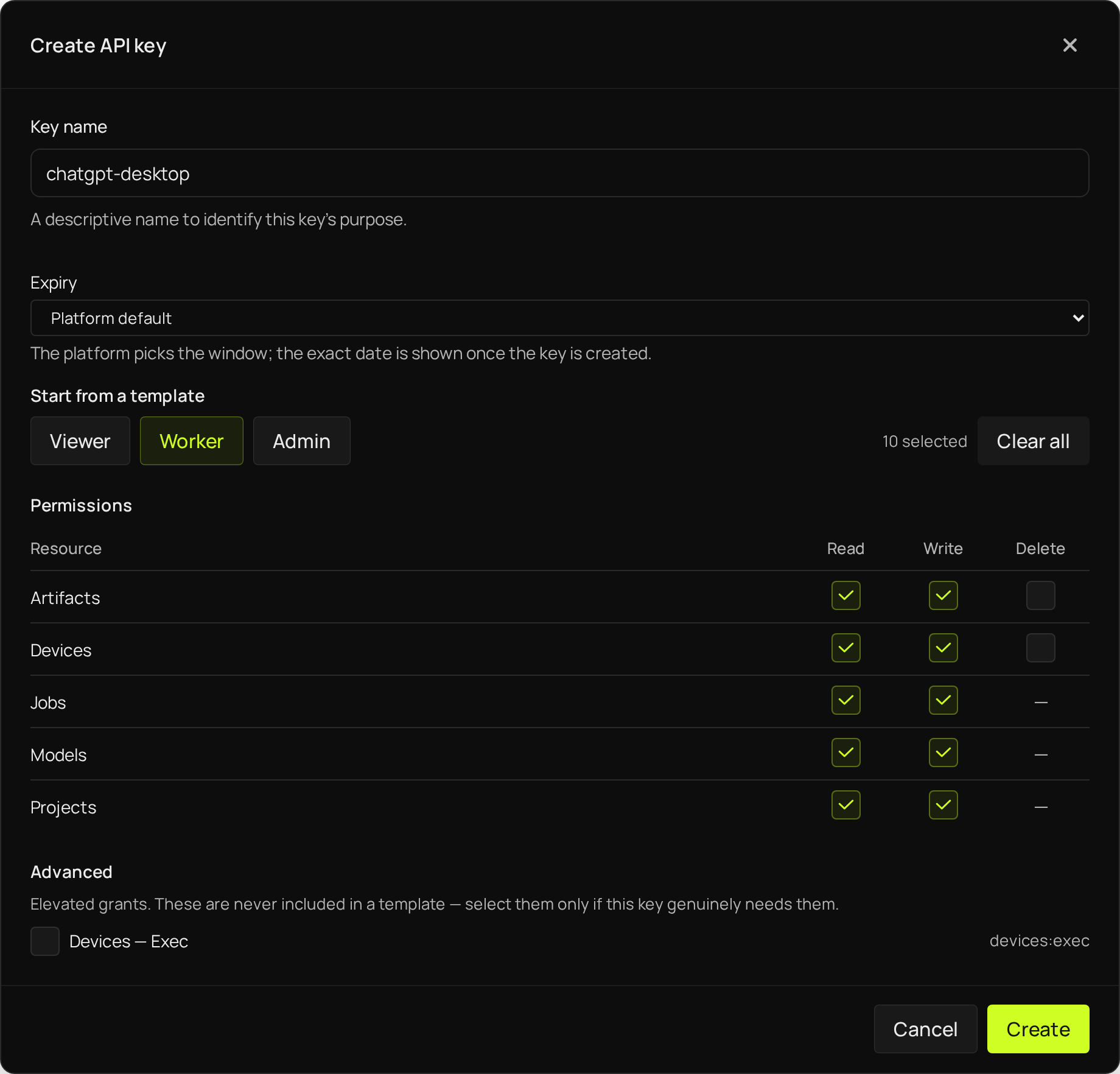
Press Create key.
- Key name:
chatgpt-desktop. - Start from a template: Worker. ChatGPT can then look at your devices and also run benchmarks for you.
- Leave everything else as it is, and press Create.
- Key name:
-
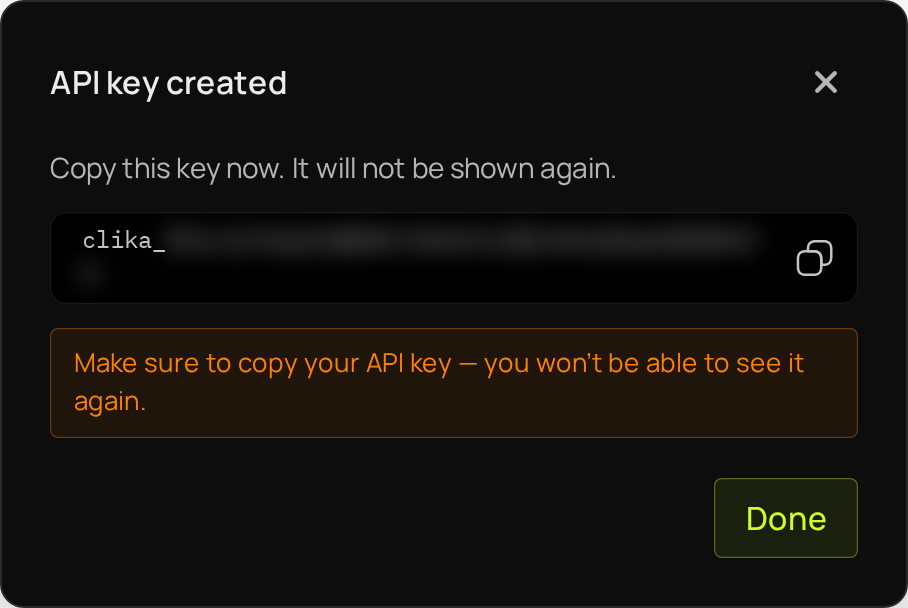
Press the copy button next to the key and paste the key somewhere for a moment, for example in a note. It is shown only once: after you press Done, you cannot see it again.
Step 2. Add the platform to ChatGPT Desktop
-
In ChatGPT Desktop, open Settings. On Windows, press
Ctrl+,. On macOS, press⌘,. -
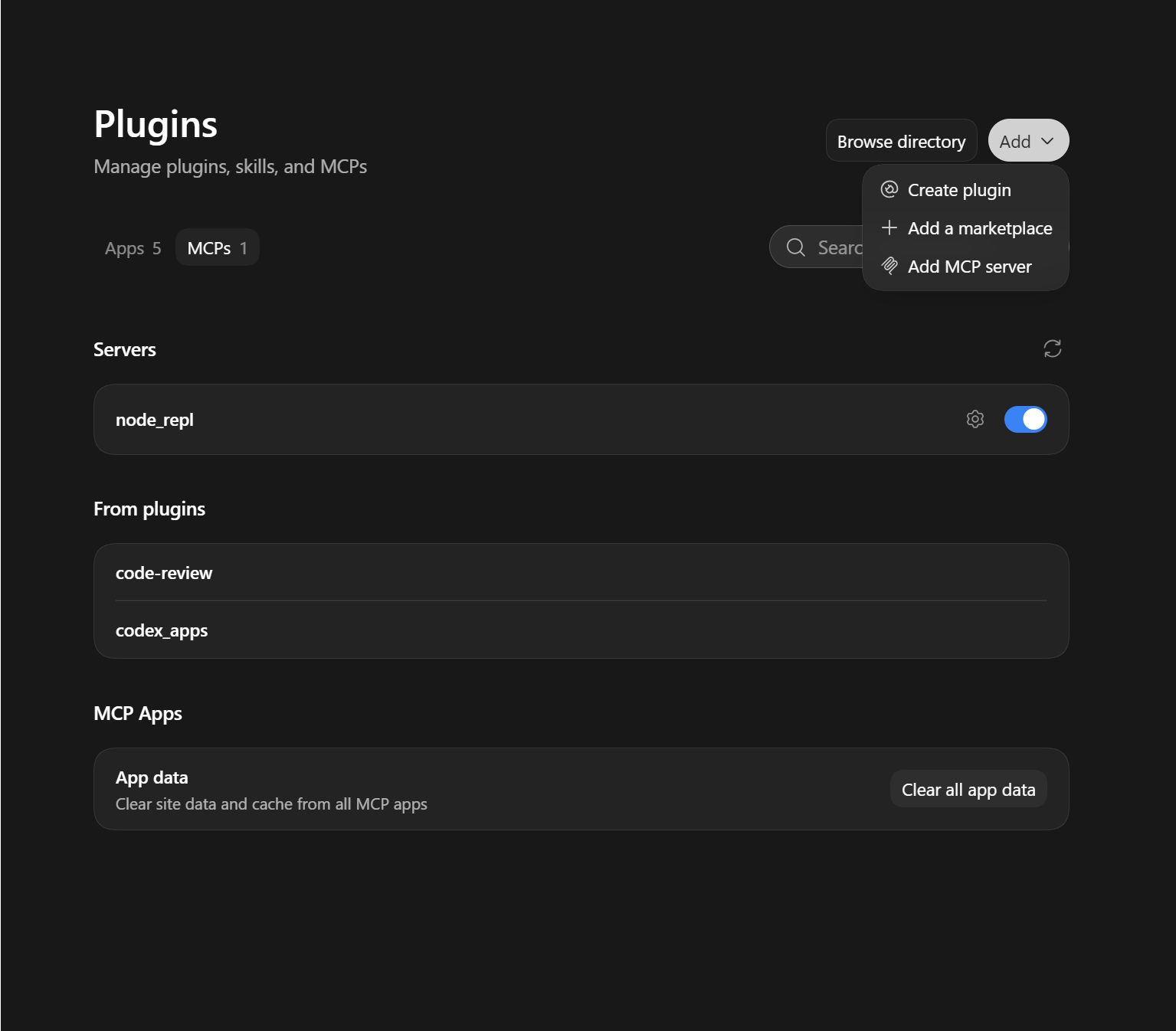
Under Integrations, choose Plugins, then the MCPs tab.
-
Press Add, then Add MCP server.
-
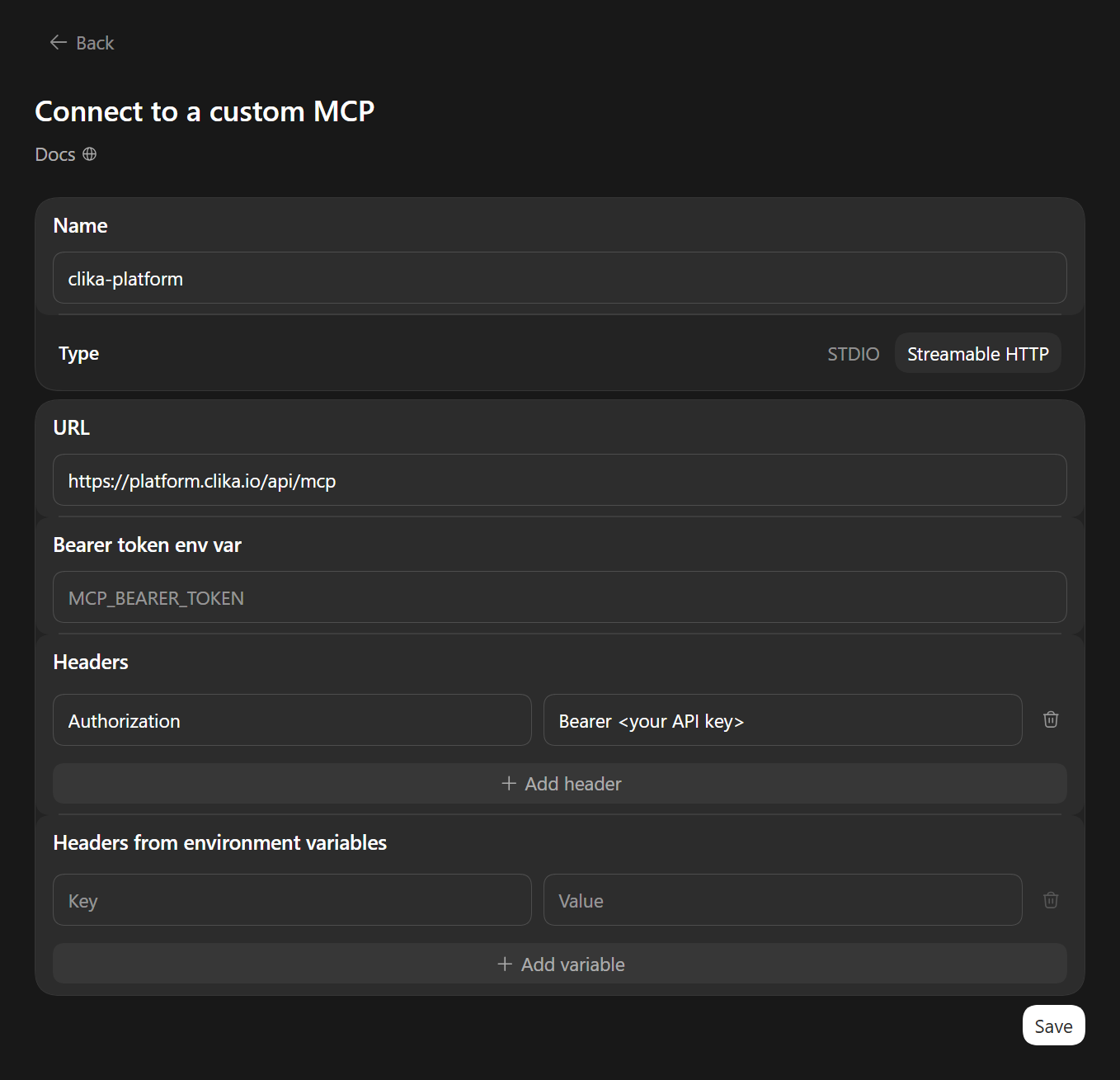
On Connect to a custom MCP, fill in:
- Name:
clika-platform - Type: press Streamable HTTP.
- URL:
https://platform.clika.io/api/mcp. If your company signs in to the platform at a different address, use that address followed by/api/mcp. - Headers: in Key, type
Authorization. In Value, typeBearer, one space, and then paste the key you copied in step 1.
Leave everything else empty, and press Save.
- Name:
-
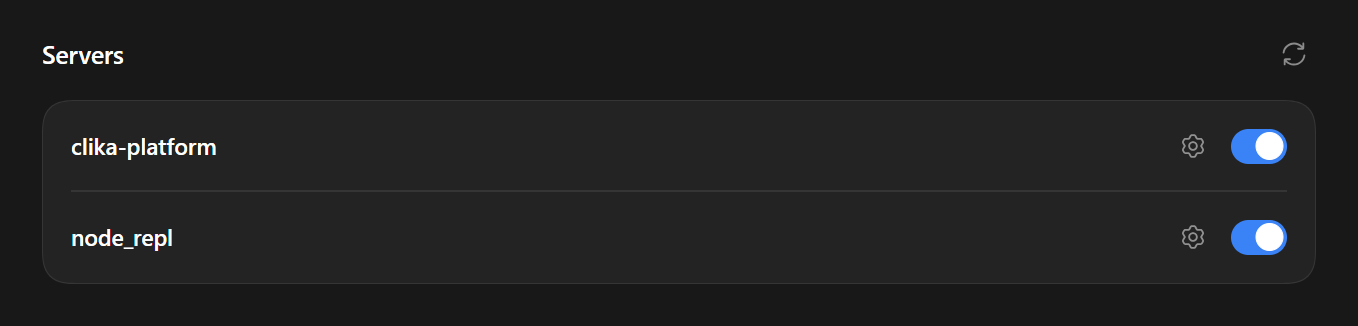
clika-platform now appears under Servers, turned on.
Step 3. Try it
Start a new chat and ask:
Which of my Clika Platform devices are online?
The first time, ChatGPT asks for permission to use the platform. Press Always allow, or Allow once to be asked again next time. When ChatGPT answers with your devices, you are ready.
If it does not work
- Check that clika-platform is turned on under Servers (Step 2, 5).
- Press the gear next to clika-platform and check the header's value:
Bearer, one space, and the whole key, which starts withclika_. - A key stops working 90 days after you created it. Create a new one (Step 1), press the gear next to clika-platform, replace the key in the header's value, and press Save.
- Quit ChatGPT Desktop completely and open it again.
If it still does not work, see Troubleshooting.
Remove it
Open Settings, then Plugins and the MCPs tab, press the gear next to clika-platform, then Uninstall. ChatGPT Desktop removes it at once, without asking to confirm.

If nothing else uses the key, revoke it on the platform under Settings, then Developer access.
Good to know
- A key stops working 90 days after you created it. Create a new one and replace it with the gear next to clika-platform.
- ChatGPT Desktop keeps the key in a settings file on your computer, which anyone who can open your files can read. Use a key made for ChatGPT Desktop only, and revoke it when you stop using it.