Add your first device
A benchmark runs on hardware you own, so the platform needs a machine before it can measure anything. This part registers one, which is a single command on the machine itself.
You need something you can install software on and that can reach the platform over the network: a Linux workstation or server (x86_64, arm64 or armv7), a Jetson or similar single-board computer, a Mac, a Windows machine, or an Android phone. The device dials out to the platform, so it needs no public address and no inbound port. A laptop behind a home router qualifies.
If your team already runs a fleet, you can skip this part: the devices are shared across every project of the organization, so they are already in your list. Pick a device is where you choose one.
Start the registration
Open Devices in the sidebar and select Register Device. The dialog asks which platform you are installing on, gives you a one-line command to run there, and lists what that platform does differently.
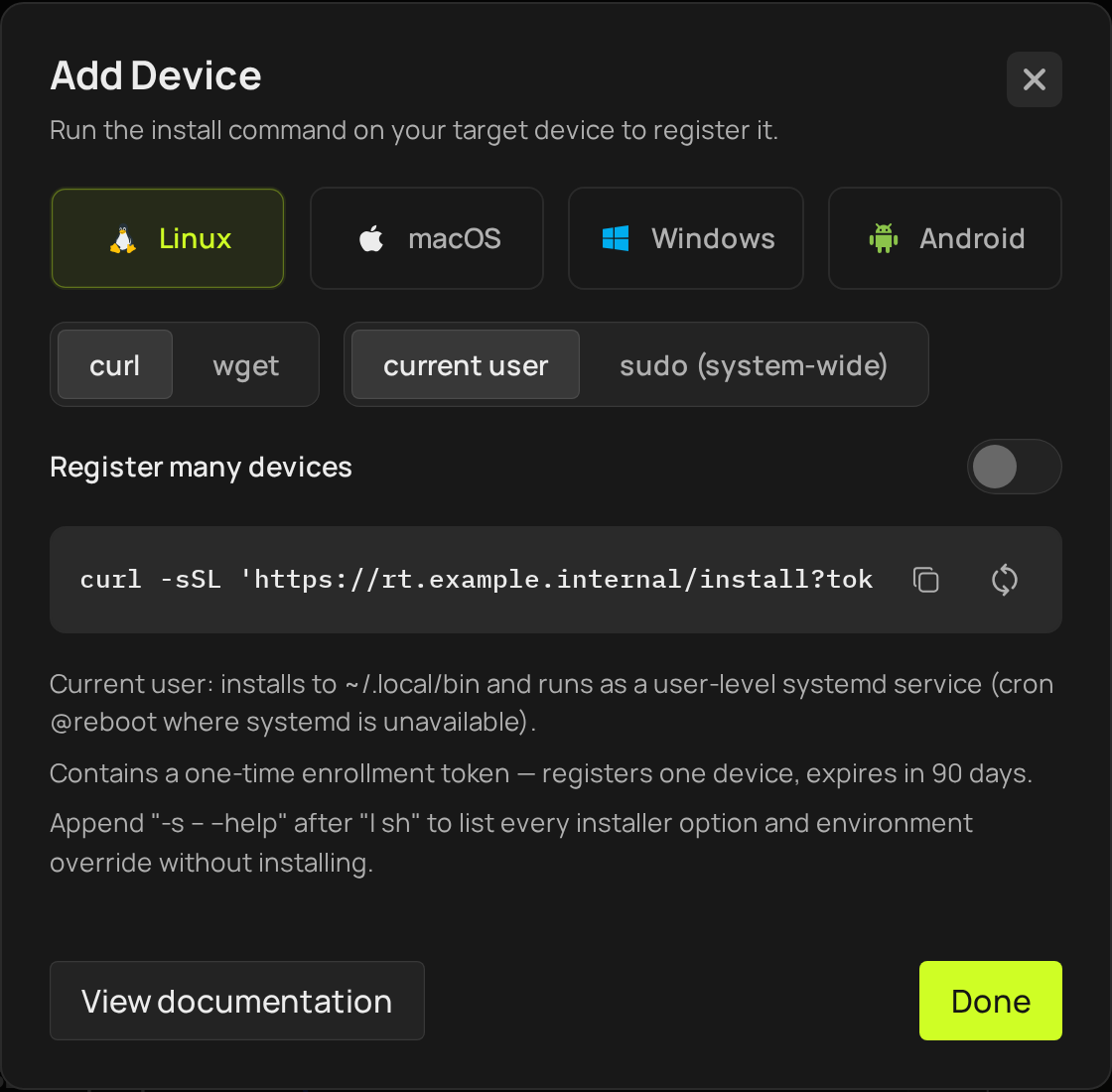
The command carries a short activation code (?code=XXXX-XXXX at the end of its address), which is how the machine proves it may join your organization without anyone typing credentials on it. The dialog mints the code when it opens; the code enrolls one device and expires 30 minutes later, so open the dialog when the machine is ready. And the agent connects on its own once installed, so there is no device-side configuration step. The device appears in the list within a minute of the installer finishing, and the dialog turns into the device list by itself when it does. Give the device one more minute before its first benchmark: it is listed Online as soon as it connects, and the channel a job needs follows shortly after.
Treat the command as a secret while it is unused. Anyone holding it can put a device into your organization, which is exactly what it is for.
Registering a batch
Reusable, many devices is a switch at the top of the dialog, beside the copy buttons. Turning it on generates a new command and revokes the one shown before, so set the switch first and copy the command after. The batch command registers any number of devices and expires after ten minutes. That is the tool for provisioning a rack or a shelf of phones in one pass, and the short life is what keeps a copied command from being useful later.
Registering with a token
The dialog's command already carries an activation code, and Register a device by code covers codes. An enrollment token is the other way in: the CLI mints one (below), and a device it enrolls is the same kind of device as one enrolled with a code.
Linux
Choose curl or wget for the downloader, and whether to install for the current user or system-wide with sudo.
- With
sudo, the agent installs to/usr/local/binand registers a system-level systemd service, so it runs whether or not anyone is signed in. - Without
sudo, it installs to~/.local/binand registers a user-level systemd service, with acron @rebootfallback where user services are unavailable. - Architectures: x86_64 (amd64), arm64 (aarch64) and armv7, so a Jetson or a Raspberry Pi class board is the same command as a server.
Appending -s -- --help after the | sh lists every installer option and environment override without installing anything, which is the safe way to look before you run.
If the platform refuses the device, the installer stops at "Enrollment with the activation code failed", with the reason printed above that line. (A token install from the CLI ends the same way, ==> ERROR: The platform refused this device and exit 1; the agent's journal keeps the detail: journalctl --user -u clika-runtime-agent for a current-user install, the system unit under sudo.) The three refusals a first install meets: ACTIVATION_CODE_USED (the command's code has already enrolled its device; generate a new one from the dialog), "this device name is already registered" (a second agent on the same machine; set DEVICE_NAME=<name> before the command), and "Your organization has N devices enrolled, the most its plan allows" (remove a device you no longer use, or ask support to raise the limit). Running the same command twice on one machine keeps one device: a token command answers "already enrolled ... nothing to do", and the second run of a single-use code command stops with ACTIVATION_CODE_USED and exit 1 while the first agent keeps running.
From the CLI
The same registration from a terminal is two commands: mint an enrollment token (the body needs a name), then print the install script for the device's operating system. install list --raw prints the whole script, so on the device itself pipe it to sh:
clika-cli enrollment-tokens create --body '{"name":"my-laptop","max_uses":1}'
clika-cli install list --os linux --token <token> --raw | sh
clika-cli devices list shows the device once it has connected. Devices has the rest of the device commands.
macOS
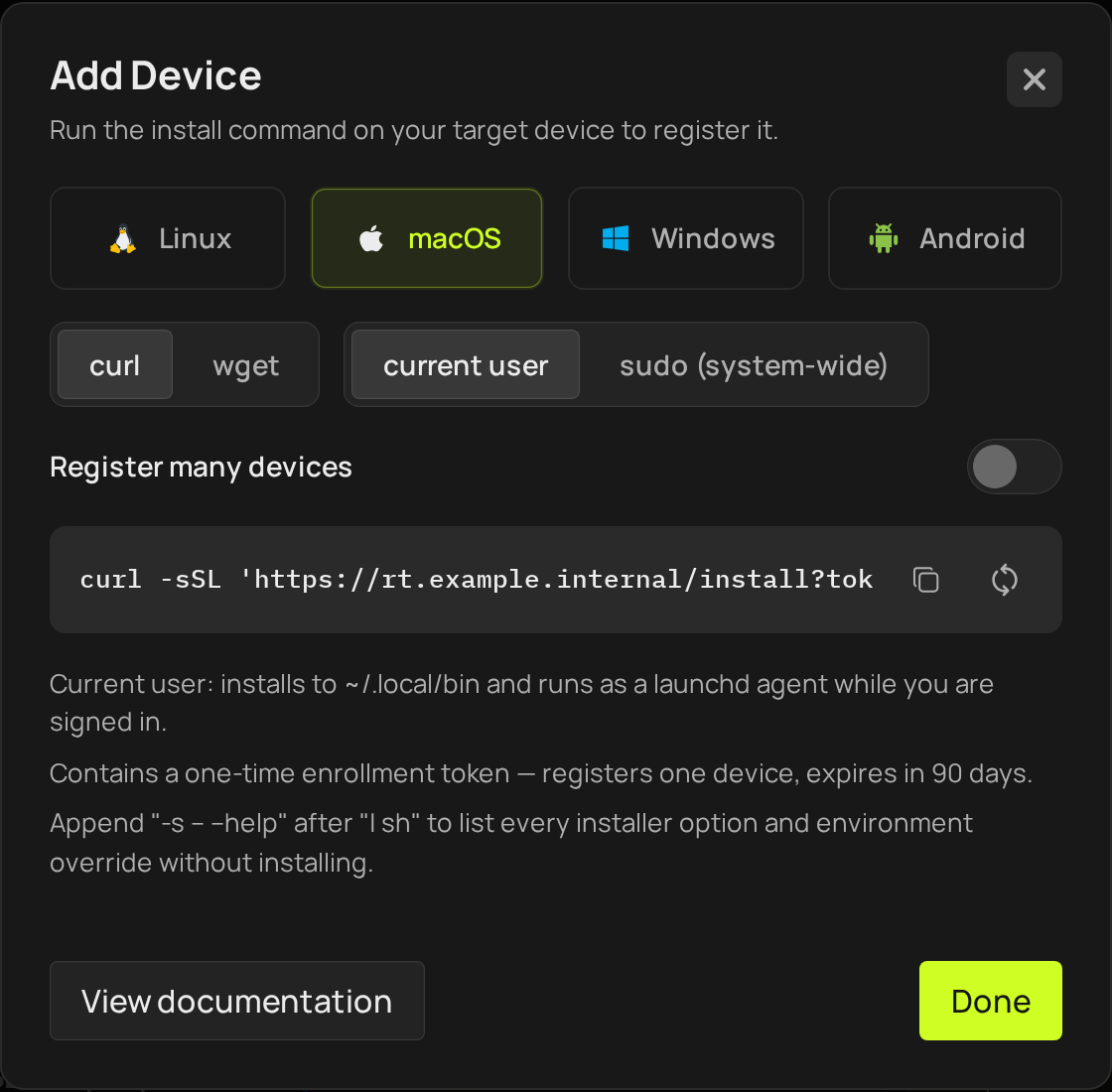
macOS offers the same choice as Linux. As the current user, the agent installs to ~/.local/bin and registers a launchd agent for your account; with sudo, it installs to /usr/local/bin and registers a system-level launchd daemon that runs whether or not anyone is signed in. Apple silicon (arm64) Macs are supported. Intel Macs are not.
Windows
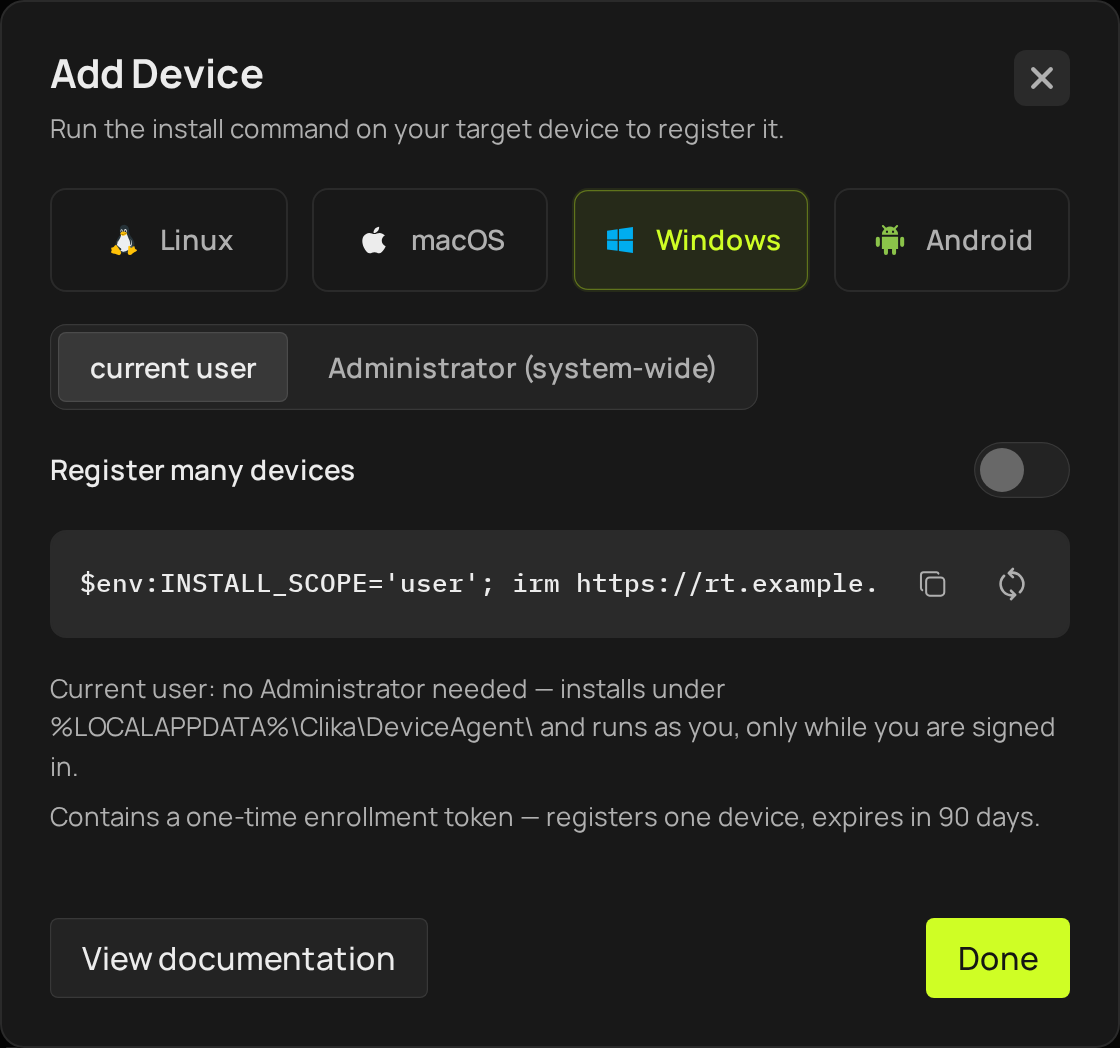
The command is PowerShell rather than a shell one-liner. Installing as Administrator registers a Windows service that runs even when nobody is signed in. Installing as the current user needs no elevation: the agent lands under %LOCALAPPDATA%\Clika\DeviceAgent\, starts at your sign-in, and runs as you with your file permissions, which also means it stops when you sign out. Both amd64 and arm64 are supported.
Android
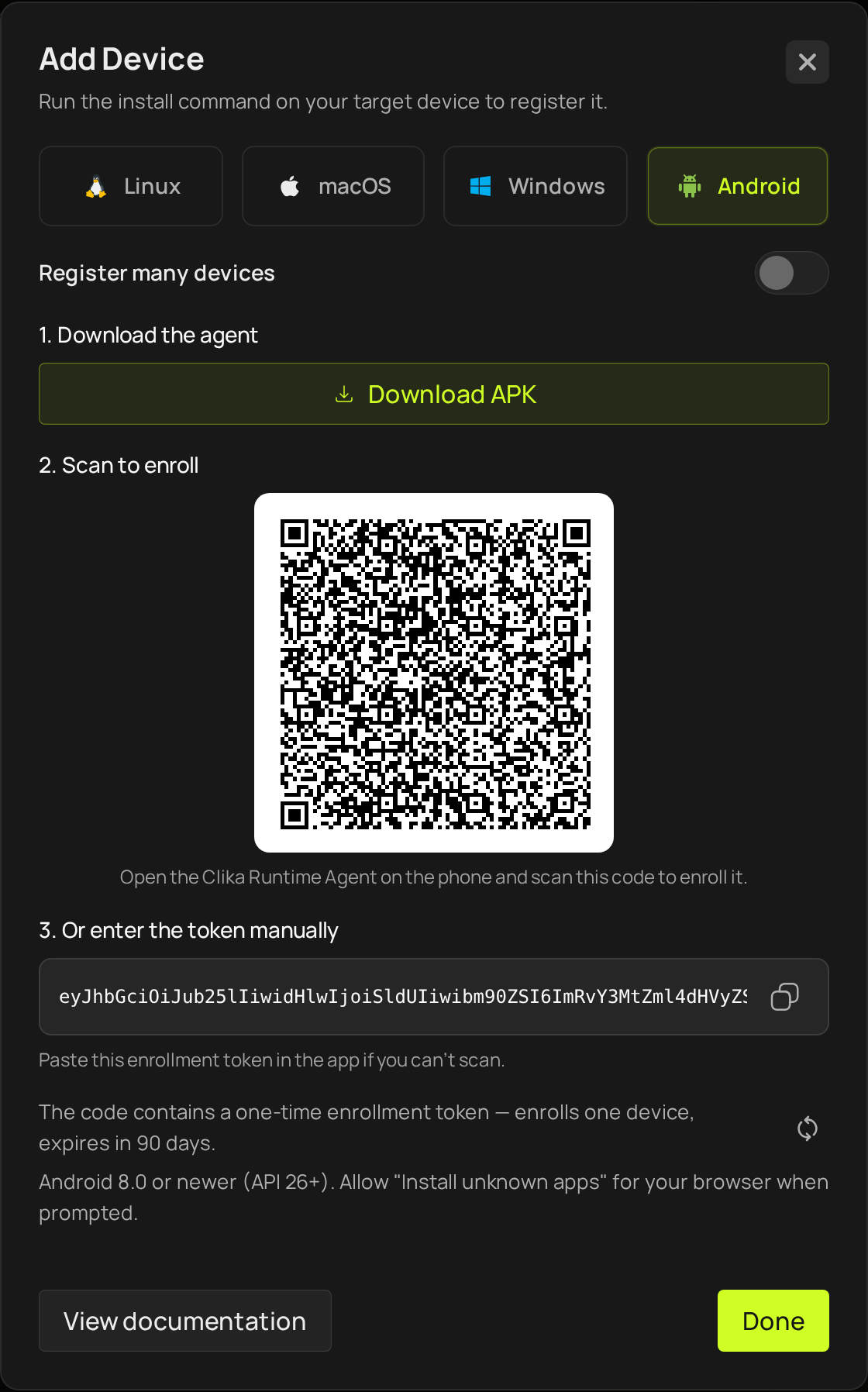
Android is an app rather than a script, in three steps: download the APK, open the Clika Runtime Agent on the phone, and scan the enrollment QR code the dialog shows. If the phone cannot scan, the same token is there to paste into the app by hand.
It needs Android 8.0 or newer, and the browser doing the download needs the "install unknown apps" permission when it prompts. The QR code encodes the enrollment token; the same token is printed under it for pasting into the app when scanning is not an option.
What you have now
A machine in the fleet, connected and reporting. The next part finds it in the device list and reads what the platform knows about it.
- Full detail: Device.
- Next: Pick a device.